
Fremont Fulfillment Co. isn’t just a warehouse operation, they also produce electrical parts and custom-built components for their industrial customers. Some of these items look nearly identical, but certain products must only be sold to specific approved customers due to contractual requirements.
On a busy weekday evening, John, the Sales Manager at Fremont, sat down with his colleague Reena after wrapping up the day’s orders. He sighed, rubbing his forehead.

“Reena, I’m always nervous when selecting items during sales order creation. We have similar-looking items, and some are strictly for approved customers. One wrong selection could cause a serious compliance issue.”
Reena, who manages operations, immediately understood the concern.
She leaned back and said, “That’s exactly why Dynamics 365 has the Approved Customer List. It prevents mistakes before they even happen.”

To demonstrate, Reena opened Dynamics 365 and began creating a new sales order for a customer who had specific approved items configured. What happened next surprised John.
When she clicked the Item Number lookup on the sales line. Only items approved for that specific customer were visible. All other items were hidden entirely.

John blinked. “Wait… so I can’t even pick the wrong item now?”

Reena smiled, “Exactly. The system protects you. You focus on sales and let D365 handle the rest”
John finally relaxed. With this feature, the risk of accidental errors is gone.
Solution: Approved Customer List in Microsoft Dynamics 365 Supply Chain Management
Microsoft Dynamics 365 Finance & Operations provides the Approved Customer List feature to address this challenge. It allows organizations to control sales by ensuring that only approved items are enabled for customers on sales orders. This control is enforced directly during sales order creation.
By using the Approved Customer List, organizations can now:
- Reduce manual checks
- Avoid wrong item selections in sales orders lines.
- Ensure that sales transactions follow contractual and regulatory requirements
For a company like Fremont, dealing with both standard and custom-built items this feature became an essential part of their sales governance.
How Reena Set It Up in D365 F&SCM
Note: This feature requires Microsoft Dynamics 365 version 10.0.44 or higher.
Configuration Steps
- Enable the Feature
- Navigate to Feature Management and turn on Approved Customer List.
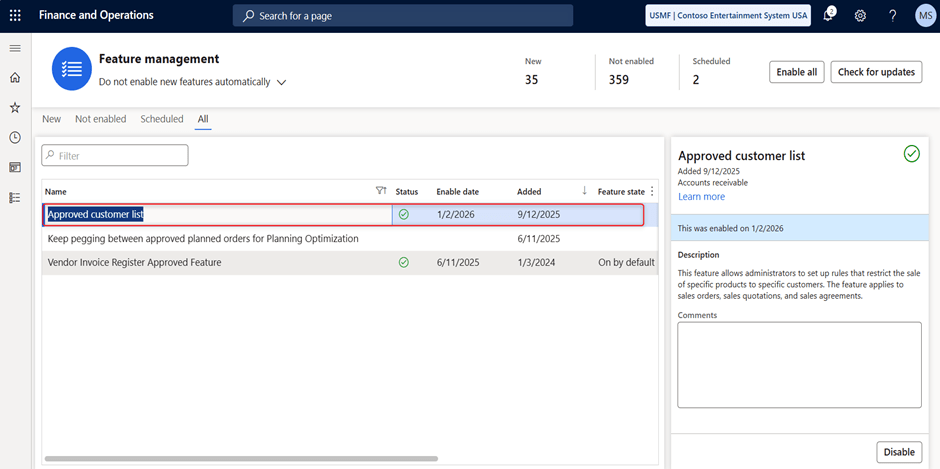
2. Configure Approved Items for a Customer

In the Approved Customer section on the Action Pane, click Setup.
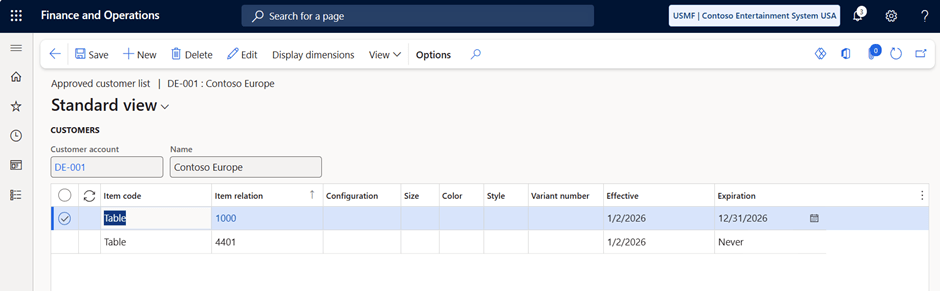
Reena added customer-specific items here using:
- Item Code (All/Table/Group)
- Item Relation
- Expiration Date
After saving, Fremont’s restricted components were tied only to their approved customers
3. Define Approved Customer Check Method
With the customer selected, in the Approved Customer List section, Reena set the check method

> No Check – Default (All released products are processed in sales orders)
> Warning Only – System warns if an unapproved item is selected on sales order lines but allows it to process further.
> Not Allowed – System blocks unapproved items completely.
For Fremont’s customer-specific components, Reena selected “Not Allowed”
4. Create a Sales Order ( Real Magic Happens Here)
When Reena created a sales order for a restricted customer and selected Item Number
Only approved items appeared and all other items were hidden.

This is where John smiled and said, the system is doing the heavy lifting.

Take away:
The Approved Customer List in Microsoft Dynamics 365 Supply Chain Management is more than just a configuration. By enabling this feature, Organizations can confidently manage customer-specific items, prevent mistakes, and maintain strong governance across their operations.
For Fremont, this meant fewer worries for John, fewer errors for the company, and a smoother, more reliable sales process.
Thank You for Reading!
If you have implemented the Approved Customer List, share your experiences we can all learn from each other!
 Dynamics Guide
Leave a comment