

Fremont Fulfillment Co. operates a growing warehouse that handles high-volume ecommerce orders for wellness products like essential oils, lip balms, and other supplements.
Note: “Fremont Fulfillment Co.” is a fictional company created for illustrative purposes in this blog. Any resemblance to real businesses is purely coincidental.
Sounds simple on the surface. But every day, their pickers walked through the same aisles repeatedly, picking one small order at a time.

Her warehouse manager, John noticed the signs too
- Orders were being fulfilled slower during peak hours
- Most of the team’s time was being spent walking, not working
Fremont Fulfillment Co. did not want to invest in automated warehouse systems as they are still growing business, and they are looking for a smarter picking strategy.
Problem: One Picker, One Order, and the Endless Trips
Here is what wasn’t working at Fremont:
- Each warehouse picker was assigned to one sales order at a time.
- Pickers revisited the same rack multiple times per shift
Solution: Turning Point was to enable Cluster Picking in D365 F&SCM
Cluster Picking lets a warehouse worker pick multiple orders in one go, using a mobile device and a cart with totes.
Each tote is assigned to an order. The warehouse mobile app optimizes the pick path, and the picker scans items directly into each tote and not necessary to sort thereafter.
What Changed for Fremont ?
In Fremont’s case, they configured clusters to contain 3 sales orders per wave. That was their sweet spot. Pickers followed a single path through the warehouse while fulfilling multiple orders at once.
Results ?
- Fewer unnecessary trips through the same locations around aisle
- More orders picked per shift without changing staffing levels
- Reduced sorting issues at packing
- Happier warehouse pickers who felt their work was smoother and more productive

How they Set It Up in D365 F&SCM
Note: This blog keeps the setup and execution intentionally simple to help new learners see that Warehouse Management in D365 F&SCM can be approachable. Real-world configurations may vary based on industry, business processes, and warehouse complexity.
- Number Sequence
Ensure to add the number sequence code for Cluster ID

2. Cluster profiles

Create a new cluster profile and enable both Generate Cluster ID and Activate positions. Positions (tote) represent the number of orders being picked simultaneously. Each position will hold items for a single sales or transfer order.
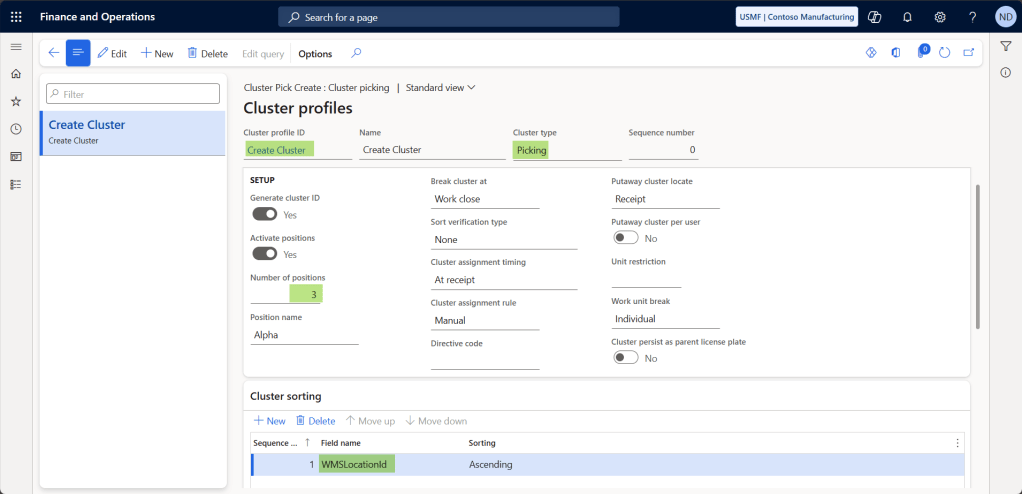
Number of positions: Define how many orders the picker will handle at once (e.g., 3 positions = 3 orders).
Position Name: Choose Alpha (A, B, C) or Numeric (1, 2, 3) to label the tote positions on the mobile device.
Cluster sorting: Set to WMSLocationId in Ascending order to sequence the pick path from front to back across warehouse locations reducing unnecessary walking.
3. Wave Templates
This controls how outbound work is grouped and processed for the warehouse RRWH.

Wave Template type: Shipping
Automate wave creation: Enabled to let the system automatically create waves when eligible orders are released to the warehouse.
Process wave at release to warehouse: Ensures the wave is processed immediately, generating pick work without manual intervention.
Automate wave release: Allows automatic release of the wave to start picking right away.
4. Work Templates

Fremont created a Work Template for the Sales order work order type. This work template is used to generate pick and put work lines for sales orders that are part of a cluster. It’s linked to a specific Work Class ID (Sales) and assigned to a Work Pool (ClusterPool) for better control during wave processing.
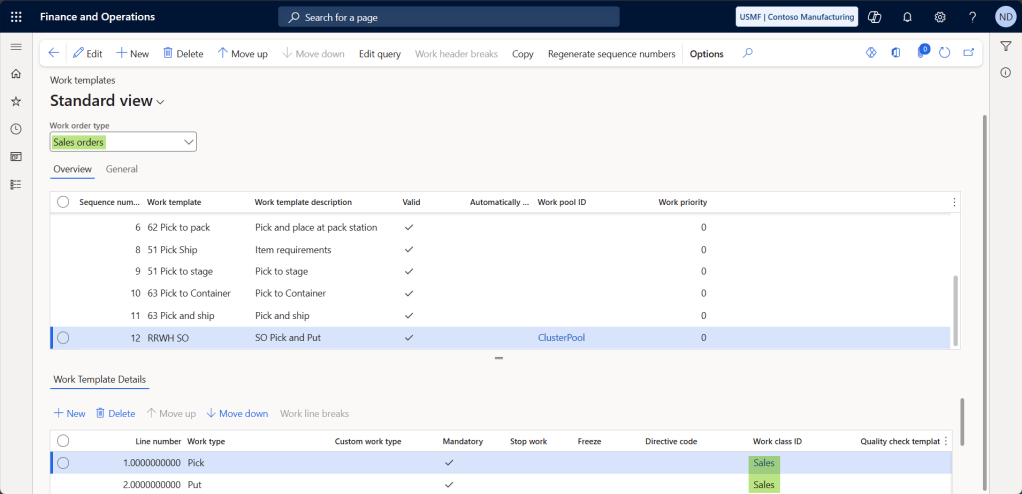
Work Order Type: Sales orders – this ensures it’s triggered during outbound wave execution.
Work Template Details: First step is Pick, and second step is Put – the basic structure for outbound picking.
Work Class ID: Sales
Location Directives
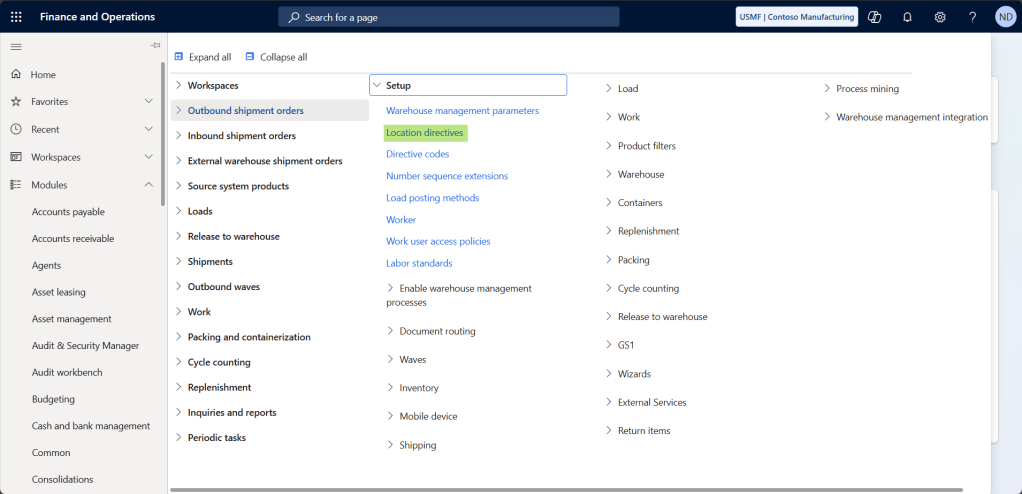
Location Directive is used to tell the system where to pick inventory from during the sales order fulfillment process specifically for cluster picking scenarios.

Work Order Type: Sales orders – ensures it applies to outbound sales.
Work Type: Pick – this directive applies to the picking step (not put).
Scope: Single item – applicable to each item line independently.
Warehouse: RRWH – applies only to this warehouse.
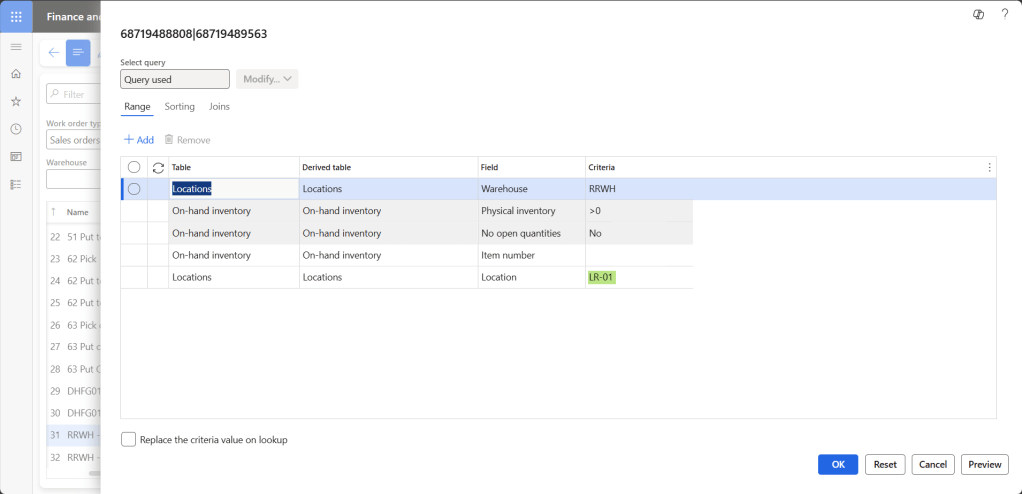
Location = LR-01: Directs the system to pull inventory from this exact location only. (Fixed location for location directive actions)

For Put away process, location directive defines where the picked items should be placed after picking.
Work Type: Put
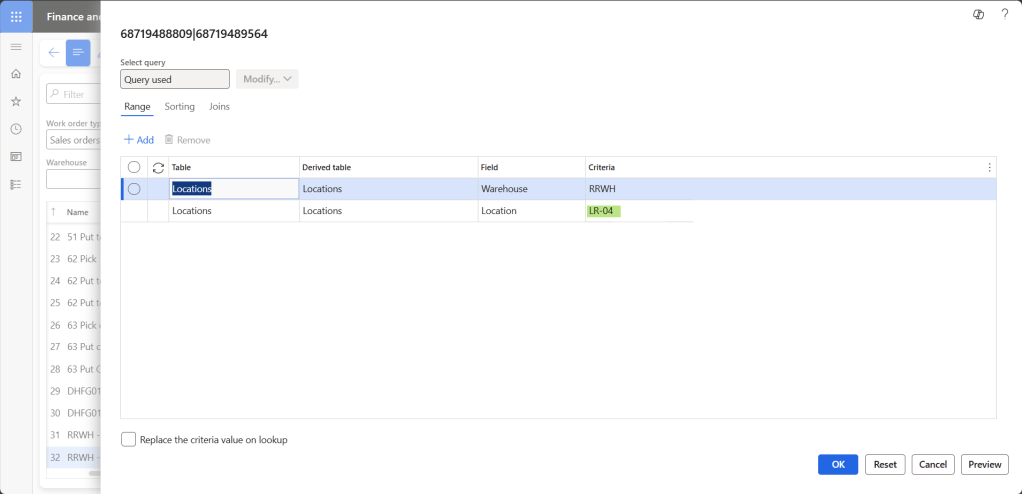
Location = LR-04 – items picked will be directed to this final location (e.g., staging).
6. Mobile device Menu Items
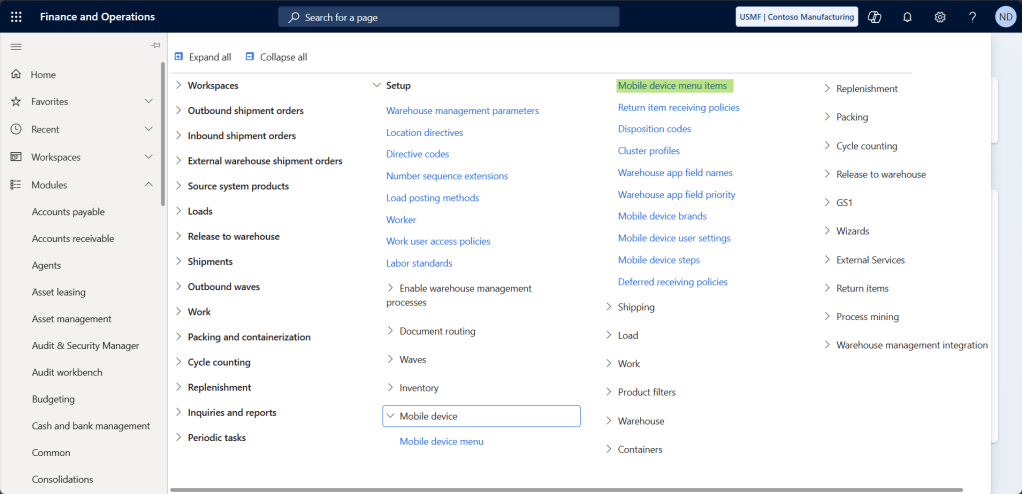
This menu item lets warehouse workers create and begin a cluster picking session using their mobile devices.

Mode: Work – since we are executing picking work.
Use existing work: Yes – allows the picker to process previously created work tied to cluster waves.
Directed by: Cluster picking – tells the system to generate work for multiple orders in a cluster.
Cluster Profile ID: Create Cluster – refers to the earlier setup defining number of positions (totes), naming convention, and sorting logic.
Generate License Plate: Yes – each position/tote gets its own license plate for tracking during picking.

Work Class ID: Sales – configured for sales order picking.
Work Order Type: Sales orders – ensures this cluster picking flow is used for sales-based outbound transactions.
7. Mobile device Menu
This setup ensures that warehouse workers can access the Cluster Picking flow directly on their mobile device through the “Outbound” menu.


Cluster Pick Create is added to the Mobile Menu Structure under “Outbound”. This makes it easy for users to launch the picking process and start scanning Cluster IDs from the field.
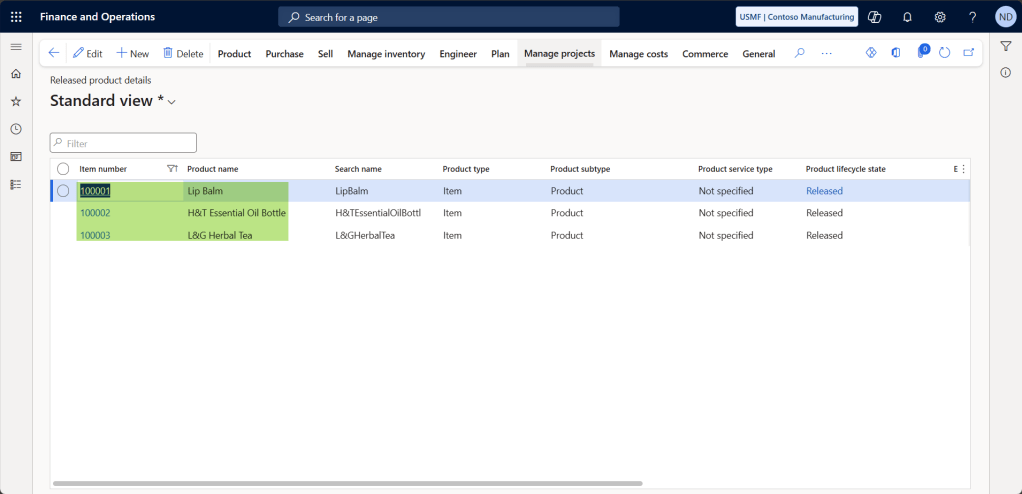
8. Released Products for Warehouse Management
Products must be enabled for warehouse management transactions. This includes assigning the correct reservation hierarchy, Storage dimension group, tracking dimensions and Unit sequence group.
For this scenario, Fremont is using 3 products i.e., Lip Balm, H&T Essential Oil Bottle and L&G Herbal Tea.
Almost There!
Appreciate for sticking with me this far! I know it’s been a lot of setups, but trust me, it’s worth it.
Fremont’s warehouse team would probably high-five you for making it this far 😊
Let’s walk through how Fremont executed a sales order using Cluster Picking in Dynamics 365 F&SCM.
9. Sales Orders Creation and Release
Fremont’s warehouse received an order from Porter LTD. for three of their best-selling wellness items i.e., Lip Balm, Essential Oil Bottle, and Herbal Tea. Each product is a single unit, perfect for small-parcel outbound clusters. Once the sales order was reviewed, Fremont’s warehouse team will Release to warehouse for further picking process Wave and Work Created Successfully.
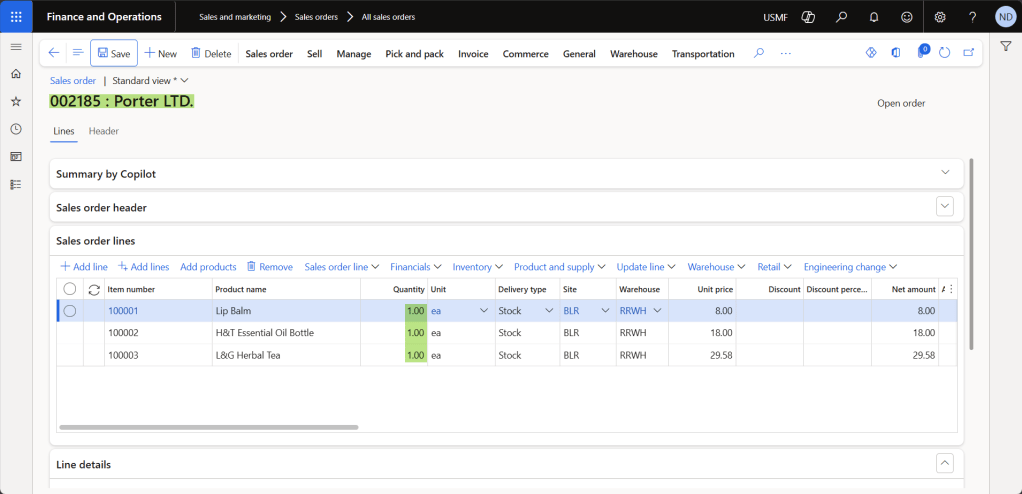
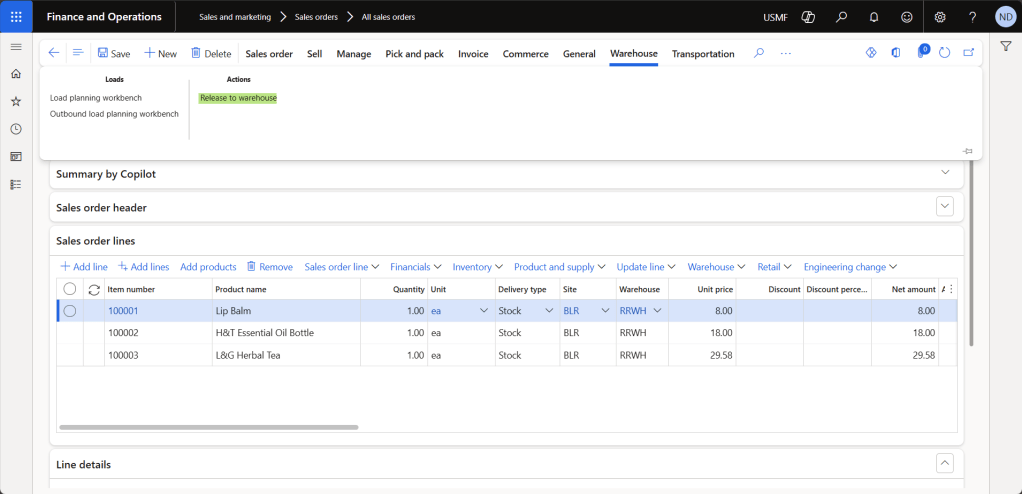
Once the sales order was reviewed, Fremont’s warehouse team will Release to warehouse for further picking process

Wave and Work Created Successfully!
Note: To simulate a realistic cluster picking scenario, two additional sales orders were created for the same customer with varied quantities and released to the warehouse. The creation steps are identical to the first order, so they have been excluded here to keep things concise.
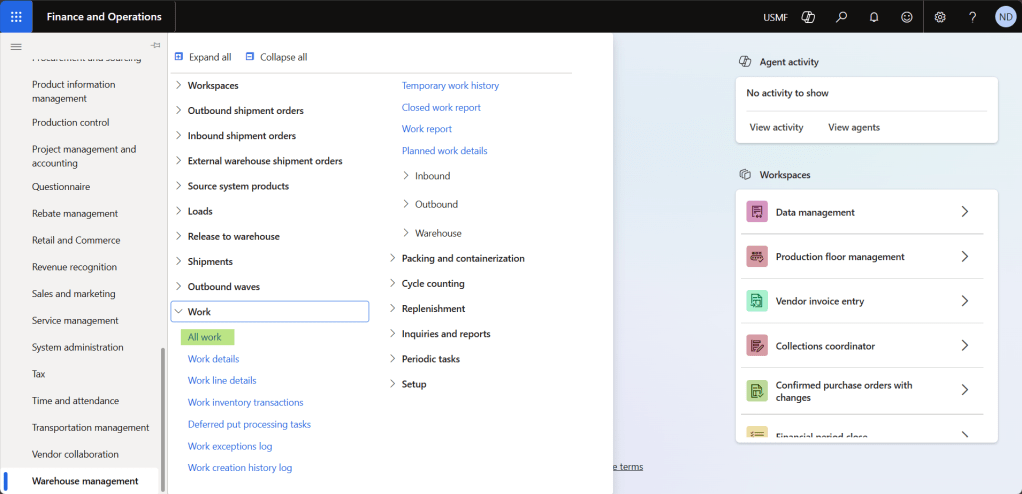
Let’s now view the work that was created when the sales orders were released to the warehouse.
As shown, each sales order has a corresponding Work ID, linking it to the generated Load ID, Shipment ID, and Wave ID automatically handled by the system. This helps warehouse supervisors at Fremont efficiently track and manage outbound operations.
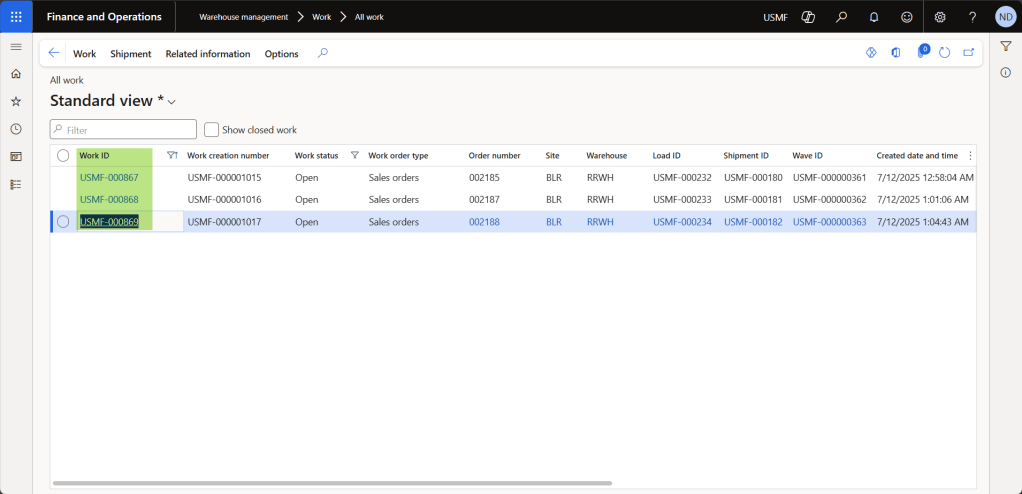
Note: If you notice that each sales order is generating a separate work ID even when the customer, products, and warehouse are the same it is because the orders were released individually.
Want a single work ID for multiple sales orders? Stay Tuned, I’ll be creating a separate blog soon to walk through this scenario too.
Time to Hit the Floor: Mobile Execution Begins!
Let’s walk through what Renna sees and does on the warehouse mobile device, step by step.
Once logged in to the mobile device, Reena is greeted by the main menu of the Warehouse Management mobile app. From here, she navigates to the “Outbound” section where cluster picking options are configured.

From the Outbound menu, Reena selects the “Cluster Pick Create” option. This is the starting point for executing cluster picking, allowing her to handle multiple sales orders in a single picking journey.

Now she enters the first Work ID (USMF-000867) to assign it to a cluster. The system automatically assigns it to Position A within Cluster ID USMF-000000051

Next, she scans the second work ID (USMF-000868) to add another sales order into the same cluster. Each scanned work ID gets assigned to the next available tote or position i.e. B in the cluster

Reena completes the cluster creation process by scanning the third and final work ID(USMF-000869). Dynamics 365 assigns it to Position C within the cluster ID USMF-000000051.


Reena reviews all the items along with quantities, Positions and confirm.

With all 18 items across totes A, B, and C picked, Reena proceeds to drop them off at the designated put location at LR-04.
All related sales orders are now ready for Packing Slip and Invoice posting.
And just like that, what used to take three separate trips now takes one. Let’s wrap it up.
Closing Thoughts
Cluster Picking in D365F&SCM is a simple but powerful feature especially for warehouses dealing with a high-volume of small orders.
With just a few configuration changes and the right mobile flows, Fremont Fulfillment Co. saved time, improved throughput, and reduced walking distance, all without hiring new staff or adding automation.
It’s a reminder that sometimes, the answer isn’t more technology. It’s better use of what you already have.
Thank you for reading, and happy learning!
If you have implemented Cluster Picking in your warehouse or have tips from your own experience, do share your story in the comments. Let’s learn together!
 Dynamics Guide
Leave a comment