
Sales commissions are a great way to keep your sales team motivated to generate more business and increase the organization’s revenue. Microsoft Dynamics 365 F&O helps us to effectively process and track the sales commissions in an organization. In this blog, let’s discuss how to set up sales commissions for organization.
Setup: Sales and marketing> Commissions> Customer groups for commission.

Create a new commission customer group that is used to calculate commission for a customer.

Create an commission Item groups that help you categorize your items or products which are eligible for commissions.

Use the Sales group form to create categories of Salespersons and assign their share of the commission.

Once you have defined the sales groups, User can add the salespeople that belong to these groups. Click on General>Setup> Sales rep in the Commission sales group form.

In the Sales rep form, select the username of the Salesperson and enter the share of commission that he will receive.

Navigate to Sales and marketing> Customers> All customers.
Select the customer and navigate to sales order defaults, assign commission customer group and sales group as highlighted below.

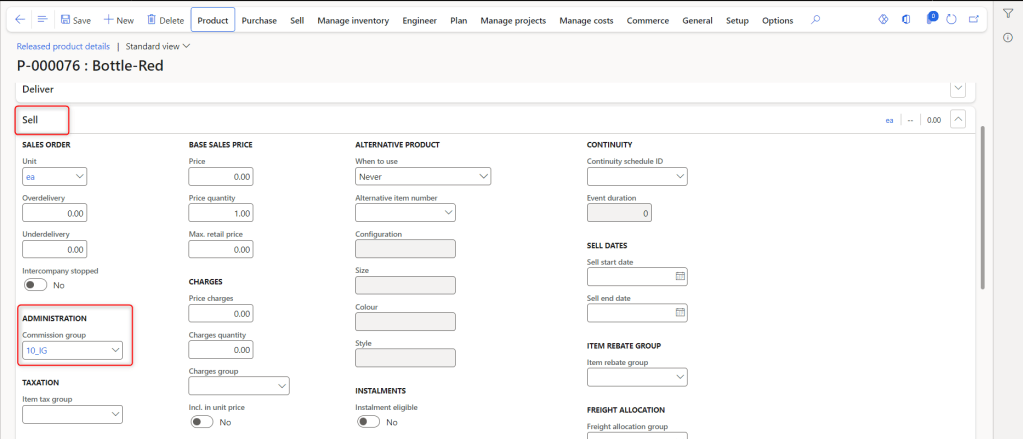
Navigate to Product information management> Products> Released products.
Select the product and expand the Sell fast tab. Assign the commission group that you created earlier as highlighted below.
Commission calculation.
Navigate to Sales and marketing> Commissions>Commission calculation Create a new commission calculation and assign customer group, sales group and item group as highlighted below.
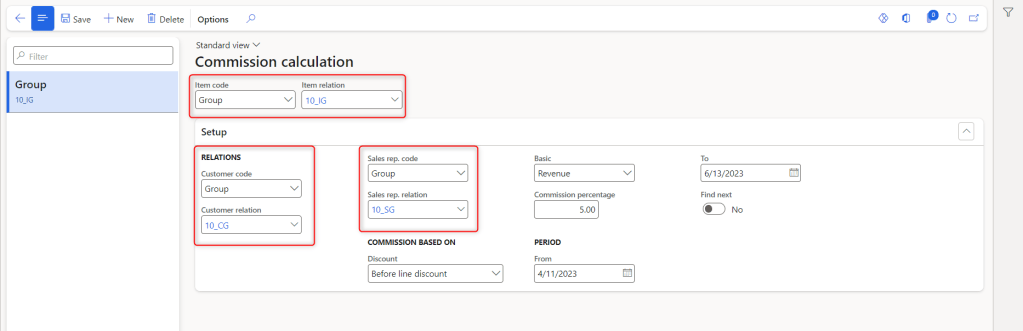
Select the discount commission criteria to be calculated i.e. Before a line discount, After a line discount, or After total discount. In this test case I have selected commission based as Before line discount.
Basic field determines if the commission calculation should be based on revenue or on the sale margin.
Select the Commission percentage and it will consider whatever you defined in the Discount and Basic fields multiplies it by the percentage to get your commission.
Period From and To fields let us define a validity.
Enable Find next to find the next applicable commission calculation.
Commission Posting
Navigate to Sales and marketing> Commissions>Commission Posting


Create commission posting based on the combinations of items, item groups, sales categories and customer, customer groups or all customers to define main accounts that the commission should post.
Note: Commission tab will be the debit and commission offset tab will be the credit.
Now let us create a new sales order with the assigned customer and item in commission group to track the process.

In the sales order, I have selected the same customer and item that we assigned the commission item group to. Notice that the Unit price is 1,000.
Next, I will complete the shipping process and invoice the sales order.

After we have posted the invoice, we can view the commission details as highlighted above.

Now, we can see that Naveen D P has received 50 as a commission.
i.e., Net amount is 1,000 * 5% of commission = 50 INR.
Let us also find the voucher entries for this sales order to understand the posting of commissions.

We can see that the commission expense account is debit with 50 as sales commission and the Commission payable account is credit with 50 as sales commission offset account.
That’s it for this blog, I hope the above information of commissions in sales order is easy and useful to track in Microsoft Dynamics.
 Dynamics Guide
Leave a comment