

In this Blog, Let’s discuss on direct deliveries to customers in Microsoft Dynamics 365 F&O.
Business organizations can deliver the products directly from the vendor to customers without physically entering your company’s inventory.
Process as follows:
1.Sales and marketing > Common > Sales orders > All sales orders > New Sales order
2. Select the Item number and enter quantity in Quantity Field. Specify all other information which is necessary.

3. Click Direct delivery in the New of the Action Pane and Direct Delivery form will be open. If Vendor account number specified on item, then it will automatically reflect on Direct Delivery form or else you can manually select the preferred vendor and click ok.
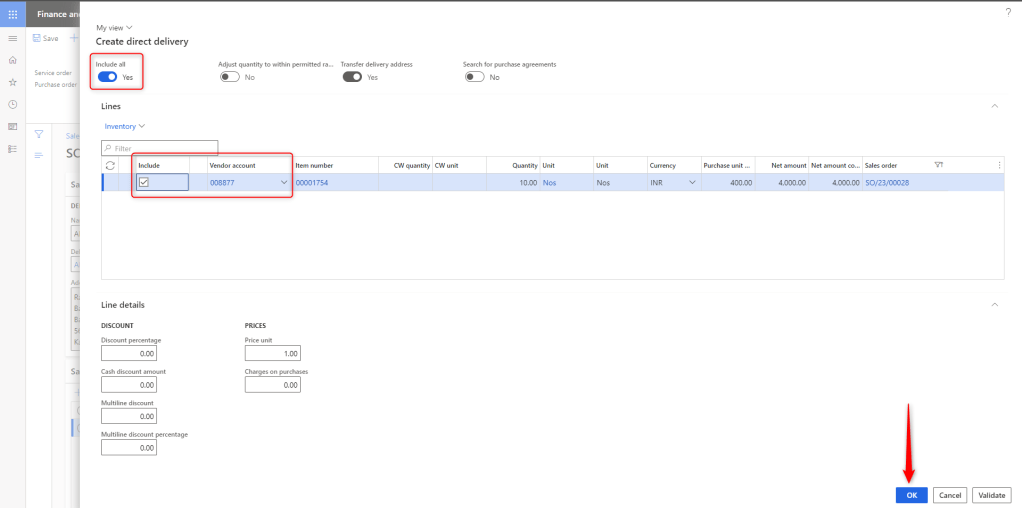
4. Once Purchase order is created, System will show the below Infolog on screen.
Automatic purchase creation Vendor account: XXXX Purchase order XXXXXX has been created.

5. There are multiple ways of finding the reference purchase order i.e. On the action pane, Click on related orders or purchase orders. Secondly, Navigate to line details > Product > Item Reference as highlighted below.

6. Open the purchase order and confirm it by validating all the details. Also, User can find the item references even on purchase orders as highlighted below.

7. Post the Product receipt and the status of the Purchase order status will be changed to Received and automatically Sales order status will be changed to Delivered.


Conclusion: Organisations can use this feature to create direct deliveries from vendors to customers to save delivery time, inventory carrying costs, labour cost and also reduce transportation cost because you do not hold the products in your warehouse.
 Dynamics Guide
Leave a comment